Wednesday, November 23, 2016
Auto Post in Multiple Facebook Groups In Single Click without Using Script
Hello friends,


As you know facebook is #1 social networking website. It is the best place for all blogger actually not only forblogger, but also its good place for all users to promote their blogs, websites, bussiness, etc. on facebook groups and fan pages. By promoting they can boosttheir website/blog traffic. Specially most of the bloggers and webmaster joins a lots of facebook group for promoting purpose. But how you sharing your posts/links to facebook groups? It will be very difficult to open every group then posting to each group individually.

Are you looking for any tricks which can do this job? Well, today i'm gonna tell you about how you can post/share your status in all facebook groups you have joined. It will save your lots of time. Also it will save your Internet data which would be consumed in browsing such facebook groups.
Steps To Post In All Facebok Group At Once:
- The first things you have to do is to collecting the email addresses. This steps is not easy but not difficult also. Means you have to collect the Email Addresses of all the facebook groups you have joined or you can collect Emails addresses of only those groups where you wanna post your status at once. Some groups provides their emails in info if not then, simply collect the Username of the group by opening the group into your internet browser (as shown in the picture below).

- Note all the group's Username at one place in notepad. (Press Ctrl + R, then type notepad and hit Enterto open notepad).
- Now make/create e-mail addressof facebook groups from their usernames we have collected in above steps. You just need to add/paste @groups.facebook.comafter username. Facebook groups Email Address will be looks like the below Email Address.
UserName@groups.facebook.com
- If you need more emails then joina lots of groups and use above mentioned method to create email from the usernames of those groups. Once you made the collection of email addressespaste them into notepad and make sure you have separated each Emails with commas.
- The main job starts from here,login to your email address which you have used to create your facebook account or sign in to email which you have made Primary email in your Facebook account/profile.
- Now click on Compose Email option.
- Copy all the Email address of the facebook group you have collected and paste into the BCCfield.
- Now compose your mail with text , links etc what you wanna share/post in those facebook groups and click on Send button.
- You'r done. now you can check that facebook groups, your status is successfully posted into allgroups.
Conclusion:
In this article I explained about the method by which we can post into multiple/selected facebook groups at once. If you'r getting trouble with any steps, Feel free to ask. Stay tuned

Top 5 Highest Paying URL Shortener Websites to Make Money Online
Hi there, As I already shared many articles on Facebook, Blogging and other tricks. Today I am going to share a first article about making money which is the easiest method for all to earn good money just by sharing the links.
Sharing links become a habit for internet users. We always share website links with our friends especially on Facebook,Twitter, Google plus, YouTube etc. Some blogger or other people also share downloading links in their blog/websitesor through emails.
So, why not to make money by sharing URL (links) anywhere, anytime. Yes, depending on your work you can earn huge amount of money. In this method of making money, you need to just convert short link from any link and share themanywhere to earn money online. When anyone click on your given URL, Short URL wait for 5 seconds and then it will redirect to original destination link. By this way, the company can pay you, paying rate are different for different companies website. Depending upon the companies they generally pay in between1$ to 10$ per 1000 views on the URL. These companies also provide referral system, means if anyone joins with your referral link then you will also get about20% commission of their earning.
Top 5 URL Shorteners to Make Money Online:

Various URL Shortener Websites are available on internet, I made a list of Top 5 URL Shortener Websites with theirmode of payment, an average earning per 1000 views as mentioned in their website and their alexa rank.
#1 Shorte.st
Shorte.st is new free URL shortening service website with more creative ideas and the important point is that you can use their WordPress plugin and make money with links in very way. Shorte.st will pay you 5-12$ per 1000 views for promoting their Shorten Link. Your earning amount (payment) will be send automatically on the 10th day of each month.
- Payment Method: Paypal orPayoneer
- Minimum Payout: 5$ through Paypal or 20$ through Payoneer
- Referral Earnings Rate: 20% commission on referrals - lifetime
- Alexa Rank (Global): 8,509
- Link: Register for Shorte.st account.
#2 Bc.vc:
Bc.vc is a modern URL shorten website where users can make good money in the easiest way. You can get paid by sharing your links on the internet. Just register for an account, start shrinking URLs and make money. For every person that visits you URLs and you will get paid. WithBc.vc you can earn about 4$ per 1000 views and with their referral program you can also earn extra 10% commission for the lifetime from your referrals.
- Referral : 10% Commission for Lifetime.
- Minimum Payout: 10$ ThroughPaypal or IBANN
- Alexa Rank (Global): 2,582
- Link: Join Bc.vc here.
#3 AdF.ly
AdF.ly is an one of the most popular and trusted URL shortening company. Just register for an account and start shrinking URLs. You will get paid when anyone visits on your URLs. With Adf.ly you can earn upto 4$ per 1000 views to your Shorten links.
- Payment Method: Minimum Payout 5$ by Paypal, Payza or AlertPay.
- Referral Earnings Rate: 20% Earnings For Lifetime.
- Alexa Rank (Global): 165.
- Link: Register on Adf.lf
#4 Linkshrink.Net
Linkshrink.Net is also popular URL shortening website that allow users to make money anytime anywhere when anyone clicks and views your shorten links. Linkshrink pays about 2$ to 5$ per 1000 views and Through referral program you can get 10% commission from the user you referred. That means if you refer 10 users to LinkShrink and if each one of them earns $2 daily then you will be earning a total of $4 daily without any effort at all.
- Referral Earnings Rate: 10% Earning for Lifetime.
- Payout Option: Paypal or Payza
- Alexa Rank (Global): 4,980
- Link: Join LinkShrink.
#5 Linkbucks:
Linkbuck (having Global Alexa rank 1,038) offers user to make money every time by converting and sharing shorten links. Uou can share anywhere on facebook, Google plus, Twitter , blogs, websites etc. You can create/convert single short link, multiple links or a full-page script that turns your blog/website into a cash machine if you have lots of traffic. Linkbucks is number one competitor of Adf.ly. It can pay 0.5$ to 3$ and minimum payout is 10$.
- Referral Earning Rate: 20% Commision for Life Time.
- Payment Option: PayPal orPayoneer.
- Alexa Rank (Global): 1,038
- Link: Register on Linkbucks.
Conslusion:
This is the list of Top 5 URL Shortner Website, you can choose any one website to earn a lots of $$$ just by sharing your links anywhere anytime on socials sites, blogs or websites etc. Why i said this is best method because a user can also make $$$ online even they don't have blog or any websites. If you'r looking for best websites just for direct URL shortener, not for making money then i highly recommend you to use below sites:
- Goo.gl
- Bit.ly
Transfer Files between Android and Windows PC Using WiFi Without USB Data Cable
Transfer Files Without USB Data Cable: Have you ever tried to transfer any files such as any document, songs, videos, movies, software, games etc. between your computer and android phoneswithout using of USB data cable. Yes its possible, toady i'm gonna tell you about the simple way to transfer files between your computer & mobile by using WiFi. To use this method you need an computerwith MS Windows Operating System and an android device.
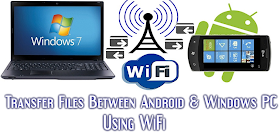
This method makes the use of WiFiinstead of USB Data Cable so make sure your both device have WiFi facility. If you wanna transfer files between Laptop and Android phone then ok you don't need need any extra hardware because now a days almost every laptops & android phones have WiFi facility but if you want to perform this job with Desktop computer then you will need a WiFi Adapter to use WiFi in your PC. Steps are very simple, lets see the tutorial step by step.

This method makes the use of WiFiinstead of USB Data Cable so make sure your both device have WiFi facility. If you wanna transfer files between Laptop and Android phone then ok you don't need need any extra hardware because now a days almost every laptops & android phones have WiFi facility but if you want to perform this job with Desktop computer then you will need a WiFi Adapter to use WiFi in your PC. Steps are very simple, lets see the tutorial step by step.
What You Need?
As i already told you that you need an Computer or Laptop with Windows OS, an Android phone. Except these, here you will need one android application namedSoftware Data Cable to perform such job.Steps to Transfer Files between Computer and Android Phone or Vice Versa.
- First of all take your android phone and open Play Store.
- Now Search for an application. In search box type Software Data Cable and hit search button.
- Select the first app namedSoftware Data Cable from the search result as shown in the picture below.

- Install the app and once the installation is completed, openthem.

- Well, now click on START SERVICE button which is situated in the bottom.

- Make a click on Create network as shown in picture below.

- Once you will complete above process the Hotspot service will be automatically created in your android phone. Please note theNetwork SSID and Password and click on Dismiss.
- Now Turn ON the WiFi in your computer, search for the available network and made a connection with that Network and Password you have noted in above step.
- You'r done. Note the FTP addresswhich is displayed on yourPhone's screen. Now open My Computer and enter the FTP address in address bar and hit enter (as shown in below picture).

- Thats all, now Open storage folder and transfer the files whatever you want to transfer from Android phone to computer or vice versa.
Conclusion:
In this article i explained about the way by which you can share files between computer and android phone even if you don't have USB Data Cable. This method makes use of WiFi instead of Data cable and Bluetooth. Hope this tutorial helps you. Stay Tuned.
Remove Footer Credit Link from Blogger Template without Redirecting to Any Website
Many websites like templateism,templateify, waythemes etc. are available on the internet which provides verystylish blogger template at very low cost. If you purchase their template than that template will not contain any credit link. These websites also provide most of the free blogger template with Non-removable credit link. Means, what? If you'll try to remove credit link from their template, then your blog willautomatically redirect to their website(Homepage or a particular site). This is because they added some JavaScriptinto their free templates. In other hand, if you undo the changes and keep theiroriginal credit of template then it works perfectly.

Some days ago, I have visited one of these types of Blogger template websiteswhere I have seen what? that some peoples (newbies blogger) are requestinghow to remove credit/footer link from their template and the admin and other staff members are making jokes of that requests which result in creation of this topic.
Basically, newbies blogger don't want to invest money in purchasing any premium template and thus, use these types of free template for their blog. Many of them are trying to remove credit link butunsuccessful, if you are one of them then no need to wait more. Because here I have shared the method by which you can remove footer link and stop redirecting to any website.
How to Remove Credit Link?
Actually, these links are attached with some JavaScript or CSS. FindingJavaScript from the template and thenremoving is too boring and time-consuming also it requires lot's of effort to do this. But in other hand, you caneasily hide the credit/footer link via CSS. This method is very simple and takes only 2 minutes.
Steps to Remove Credit/Footer Link:
- First of all go to Blogger.com
- Just Login to your Blogger Profile and select your blog.
- Now go to Dashboard > Template> Edit HTML.

- Go to the footer and find thecredit/footer link which needs to remove/hide. You'll find something like Copyright, credit ordesigned etc (Like the picture shown below).

- Add the following line with your original copyright ID. (As shown in picture below).
style="visibility: hidden"

- Now, you need to Save your Template.
Conclusion:
Some of you are searching on the internet how to remove footer credit linkand convert free blogger template into premium. So, I hope this tutorial helps you. Share your idea/suggestion/feedback related to articles I publish here. Thanks, and stay tuned.
How to Unlock/Bypass Android Pattern Lock without Losing Data

How to Unlock Android Pattern Lock Screen
This method includes executing few lines of script in command prompt which will allow you to write any pattern and to get into your OS . As this method includes use of command lines , so it is not that user friendly but it is the most effective way for sure.
It involves a few steps :
Step 1: Connect your Android Phone/Tablet to your Computer.
Step 2 : Open Command Prompt as administrator.
Step 3 : Now in command prompt windowPaste the following code carefully exactly as it is and then press Enter.
adb shell
cd /data/data/com.android.providers.settings/databases
sqlite3 settings.db
update system set value=0 where name='lock_pattern_autolock';
update system set value=0 where name='lockscreen.lockedoutpermanently';
.quit
Step 4 : Now you will some screen as shown below and then you can reboot your phone and now when your will start again then try unlocking your phone using any random lock pattern and it will work pretty fine.

Step 5 : If you face any problem repeat same steps but instead of the above code try usingadb shell rm /data/system/gesture.key and then press enter and now try rebooting your device to see if it works.
Subscribe to:
Posts (Atom)